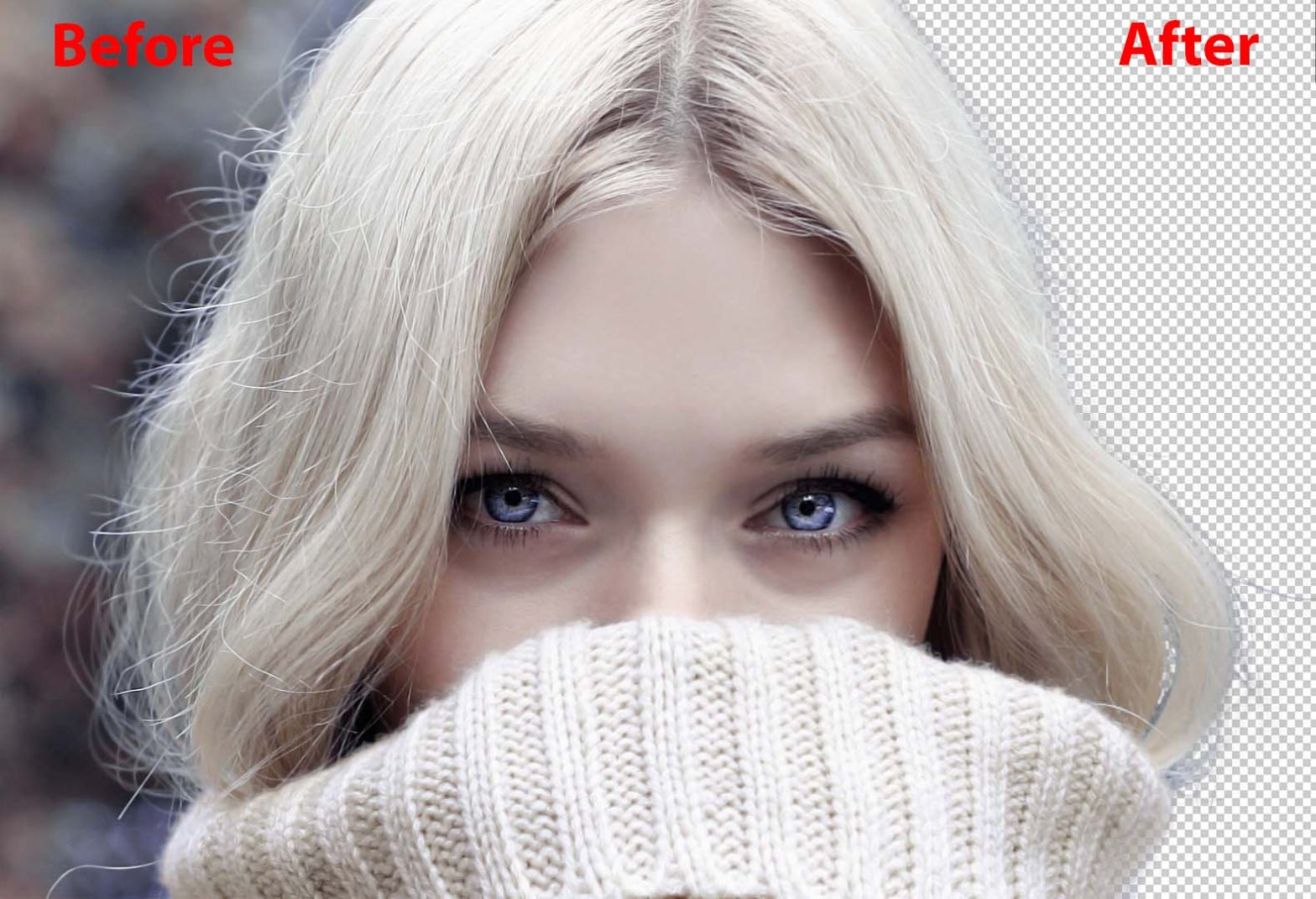
The way to remove background in Photoshop is one of the basic things you should know. The background is a part of an image. Generally, we divide every image into two parts. One is the subject and another one is the background. Capturing an image on a white background or on solid colored background is good for the process. Well, there are options to handle busy backgrounds in Photoshop as well. Several tools and techniques you may need to use for the procedure. Whether you know all the techniques of Photoshop or not, you may face difficulties. Clipping Path Services are common ways to remove the background.
Here, we will try to make you understand the problems you may face and how to solve them. The topic requires thousands of words to elaborate properly. But, we will do our best to explain in brief for your convenience. You may find a service provider for removing the background by photoshop online. However, for complex images with busy backgrounds, it is hard to separate the subject. You may lose some thin and very difficult places during the process. For this type of image, Image Masking Services are quite effective.
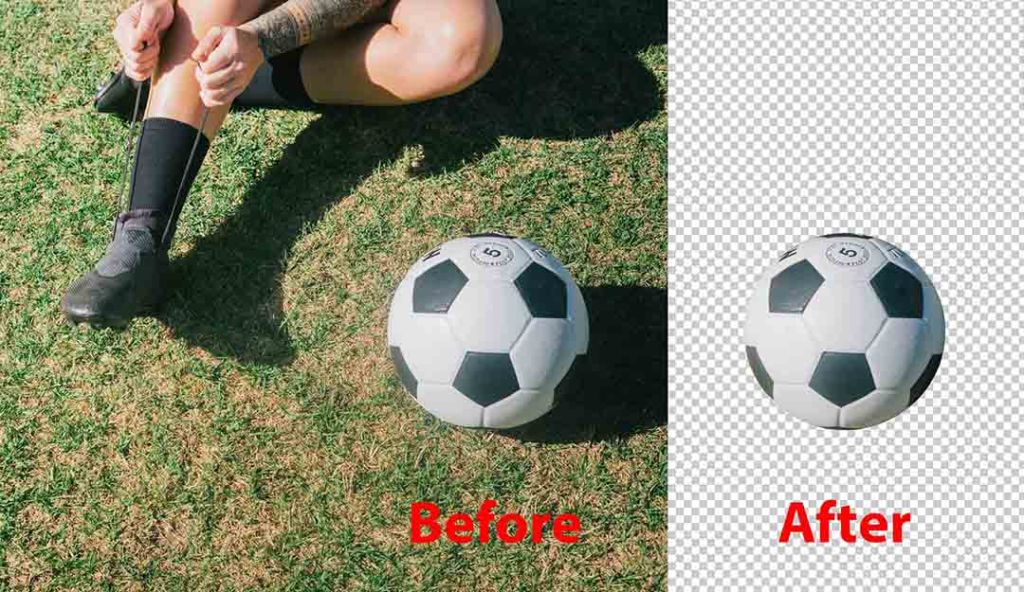
Image subjects are different by types. We will go on how to remove background in Photoshop CC 2019. The main focusing part is the edge of the subject. The sharper edges the easy to remove the background. To remove the background, you need to make the selection first. You will find several selection tools in Photoshop. They are;
- Background Eraser Tool
- The Pen Tool
- Rectangular Marquee Tool and Elliptical Marquee Tool
- The Quick Selection Tool & The Magic Wand Tool
- The Lasso Tool, The Polygonal Lasso Tool & Magnetic Lasso Tool
- Select & Mask tool
Removing the background part of the editing is easy. The hard part is making the selection. Depending on the image subject and the complexity of the background you need to follow the exact method. If you want to use the Pen Tool you can read our content “The Pen Tool in Photoshop”. You can learn the Pen Tool operation from the blog “How We Do Clipping Path”. Both are short contents but you will have the idea. For the complex subject with a busy background, you can check another blog. The name of the blog is “The Easy Background Remover tool in Photoshop”. You can check out the contents to have a better idea of removing the background. This way Removal of difficult background in photoshop is easy.
Other selection tools you use for different subjects. Among them, you may find the Select & Mask tool potential for the purpose. The process is non-destructive. Only thing is, you need to learn the use of the tools inside the mask. The masking process also answers the question “How to mask out a background in Photoshop”?The primary selection of the subject is automated. You can garnish using the built-in tools inside the masking window. Also, you can adjust some settings to get the best result out of it.
Other selection tools you may use for basic, simple, and medium shaped objects. Sometimes you may need to select the background then make invert selection. The reverse process helps you often when the background is plain. The Quick Selection tool is mostly used by designers. Well, if you make the selection right, it doesn’t matter which tool you used. So, make the selection properly and you are 90% done for Background Removal.
 Clipping World
Thanks for following my blog. 🙂
LikeLiked by 1 person
You are welcome from my image editing blog
LikeLiked by 1 person
Great writing. I enjoyed this blog so much. Thank you.
If you are looking for some great product photo editing services online you visit our website Photo Restoration Services
LikeLike
I think the crucial discussion you had about clipping path services was accurate. However, my blog will help to make things clearer. I appreciate you publishing the article so much.
https://graphicexpertsindia.com/what-is-a-clipping-path/
LikeLike